Dealing with WordPress Indexing Issues can feel like shouting into an empty room, especially when you know your content deserves to be seen. If Google is ignoring your latest posts, your organic traffic will flatline, no matter how great your writing is.
In this complete guide, you will learn how to diagnose why search engines are passing over your site. We will cover how to use Google Search Console, check your core visibility settings, audit your technical files, fix canonical conflicts, and leverage lightweight SEO tools to speed up the indexing process.
Identifying WordPress Indexing Issues in Google Search Console
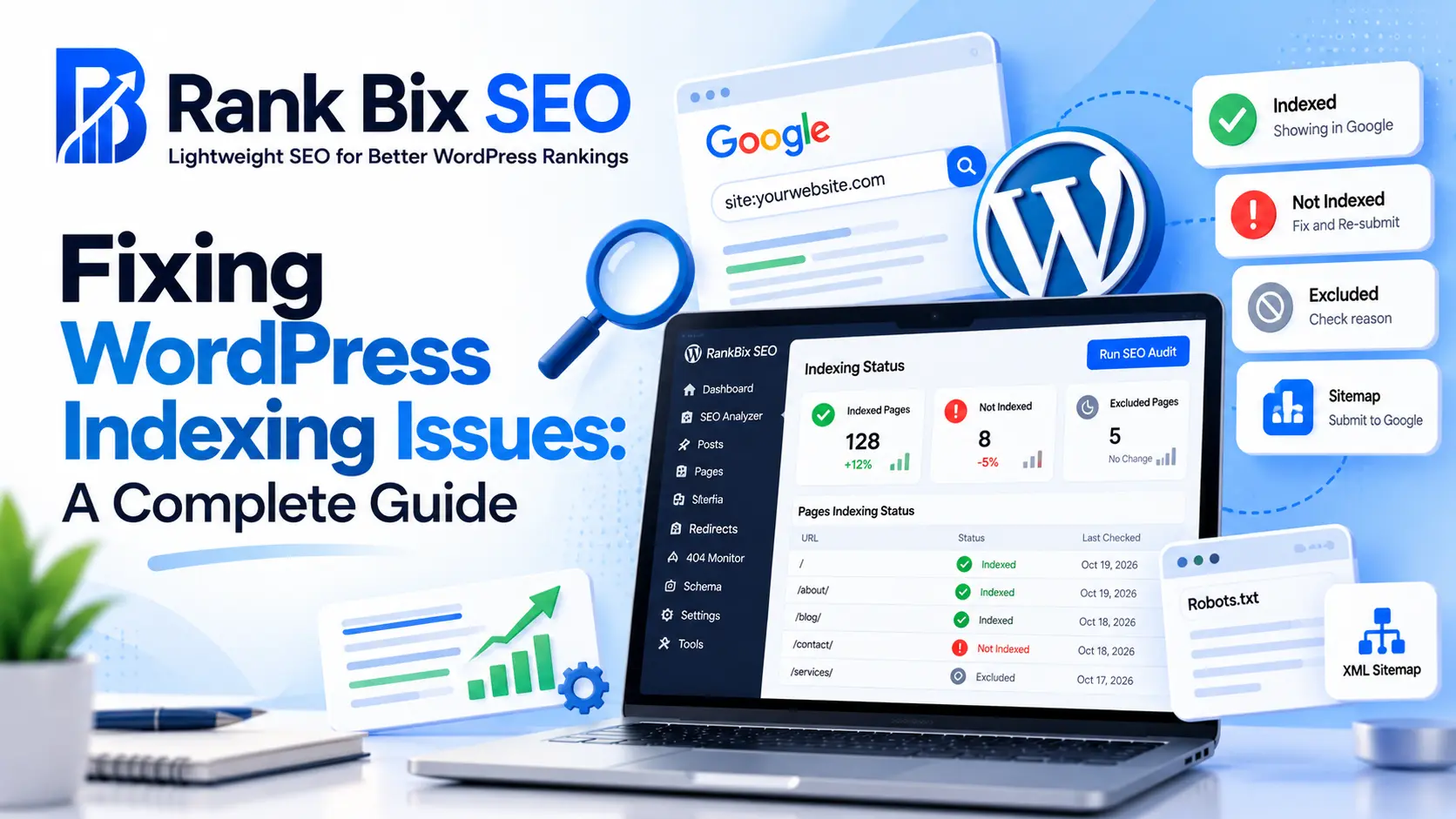
Google Search Console (GSC) is your primary diagnostic tool for uncovering WordPress Indexing Issues. Before you can fix a problem, you need to know exactly which URLs Google is refusing to add to its index and why.
Start by navigating to the Indexing report in your GSC dashboard, specifically looking at the “Pages” section. Here, Google categorizes your URLs into two main buckets: indexed and not indexed. Pay close attention to the “Not indexed” tab, as this is where you will find the smoking gun.
Common status reasons you might see include:
- Crawled – currently not indexed: Googlebot visited your page but decided not to add it to the index. This often points to low-quality or thin content.
- Discovered – currently not indexed: Google knows the URL exists, but its crawl budget ran out or it chose not to crawl it yet.
- Blocked by robots.txt: Your server is actively telling Google not to look at this page.
- Page with redirect: The URL is redirecting elsewhere, preventing direct indexing of the target page.
Click on any of these specific error categories to view a sample list of affected URLs. If you notice a pattern—such as a specific tag archive or a batch of pagination pages—you have isolated the scope of your problem. Once you make changes to fix the root cause, you can click “Validate Fix” in Search Console to prompt Google to recrawl those specific URLs.
Checking Your WordPress Visibility Settings
Sometimes, WordPress Indexing Issues are caused by a single accidental click inside your WordPress dashboard. WordPress includes a built-in privacy feature designed to hide staging sites from search engines, but site owners frequently leave it enabled on live domains.
To check this setting, log into your WordPress admin area and follow these steps:
- Navigate to Settings in the left-hand sidebar.
- Click on Reading.
- Scroll down to the bottom of the page to find the Search engine visibility checkbox.
- Ensure that the box labeled “Discourage search engines from indexing this site” is unchecked.
If that box is checked, WordPress automatically injects a noindex meta tag into the header of every single page on your site, and it updates your virtual robots.txt file to block all crawlers. Unchecking this box instantly lifts the curtain. However, keep in mind that it may take a few days for Google to notice
Identifying WordPress Indexing Issues in Google Search Console
Diagnosing WordPress Indexing Issues starts at the exact place Google looks at your site: Google Search Console. If your freshly published blog posts or essential service pages are missing from search engine results pages, you need hard data rather than guesswork to fix the problem.
To begin uncovering why your pages are missing from search results, open Google Search Console and navigate directly to the Indexing report under the Pages section. This dashboard separates your entire website ecosystem into two clear buckets: pages that Google has successfully indexed and pages that remain unindexed. Scroll down to the table explaining why pages aren’t indexed to identify patterns affecting your content.
Pay close attention to specific error types and warnings that appear in this report. One of the most common diagnostic hurdles site owners face is the status labeled Crawled – currently not indexed. This message means Google knows your URL exists, crawled it, but intentionally chose not to add it to the index yet, usually due to low perceived value or thin content.
Once you spot a problematic URL in your report, use the primary search bar at the top of Google Search Console to activate the URL Inspection tool. This powerful feature lets you test live URLs on your site in real time. After the inspection finishes loading your live data, click the Request Indexing button to manually prompt Google to review your updates and fast-track the crawling process.
Checking Your WordPress Visibility Settings
One of the most common causes of WordPress Indexing Issues is a simple built-in toggle switch that accidentally blocks web crawlers. When setting up a new site or launching a staging environment, developers often hide the platform from search engines. If left unchecked, this setting prevents Google from crawling your content entirely.
To fix this, follow these steps in your dashboard:
- Navigate to Settings and click on Reading in your WordPress admin menu.
- Scroll down to the bottom of the page to find the Search Engine Visibility section.
- Verify that the box labeled Discourage search engines from indexing this site is completely unchecked.
- Click the Save Changes button to apply your new configuration.
If your global settings are correct but specific URLs still refuse to appear in search results, the problem might live at the post level. Check your individual page or post editor settings for accidental noindex directives. Modern block editors and SEO plugins often include visibility toggles for individual posts. Ensure that your cornerstone content is set to allow indexing, update the post, and request a fresh crawl to clear up any lingering WordPress Indexing Issues.
Auditing Your Robots.txt and XML Sitemaps
Resolving WordPress Indexing Issues often starts at the root level of your website. Search engines rely heavily on automated instructions to crawl and index your content efficiently. If your automated files contain errors, search bots may give up before they even see your pages.
First, examine your robots.txt file to ensure critical folders are not accidentally blocked. Look for disallow rules targeting essential directories like your wp-content/uploads folder or your main theme files. A misconfigured rule can inadvertently block search engine crawlers from rendering your site properly.
Reviewing Your Crawl Directives
- Check your site root via your hosting file manager or SEO plugin settings.
- Ensure you do not see a sweeping Disallow: / command unless you are running a private staging site.
- Verify that CSS and JavaScript files are allowed so Google can see your page design.
Next, confirm your XML sitemap is generating correctly and accessible to search bots. Navigate to your domain followed by /sitemap.xml or /sitemap_index.xml. You should see a structured list of your posts, pages, and taxonomies without any server error messages.
Finally, submit your updated sitemap URL directly inside Google Search Console. Paste the exact sitemap link into the Sitemaps tool to force a fresh crawl. This proactive step helps bypass standard discovery delays and resolves stubborn WordPress Indexing Issues by providing search engines with a direct roadmap to your freshest content.
Resolving Canonical Tag Mismatches and Redirect Loops
Resolving technical roadblocks is essential for preventing ongoing WordPress Indexing Issues on your site. When search engine bots crawl your pages, structural mishaps like mixed-up canonicals and broken redirects can stop them in their tracks.
Managing Canonical Tags Correctly
Every single page on your website must include a self-referencing canonical tag pointing directly to its own correct URL. If a page points to an old domain, a staging URL, or a completely different piece of content, search engines get confused. They may drop the page from the index entirely, thinking it is a duplicate. Always inspect your page source to ensure the rel=canonical tag matches the exact live URL in the address bar.
Eliminating Redirect Chains and Loops
Redirect loops happen when Page A points to Page B, and Page B points right back to Page A, trapping search bots in an endless cycle. Redirect chains occur when a page passes through multiple URLs before reaching the final destination. Bots have strict crawl budgets and will abandon the process if they encounter too many hops. Streamline your site structure so every old link redirects straight to its final destination in a single step.
Fixing Critical HTTP Status Errors
Important landing pages returning 404 Not Found or 500 Internal Server Error codes will never stay indexed. Review your server logs and SEO tools regularly to catch these dead ends quickly, ensuring search bots can always access your primary content.
Leveraging Lightweight SEO Tools for Faster Indexing
Fixing WordPress Indexing Issues permanently requires more than a one-time audit; it demands a streamlined technical foundation. Many site owners accidentally harm their crawl rates by installing heavy, feature-packed optimization plugins that drag down server response times.
When your Time to First Byte (TTFB) increases due to bloated plugin code, search engine bots spend precious crawl budget waiting for your pages to render instead of actually discovering new content.
To keep your site lightning-fast and search engines happy, follow these optimization practices:
- Utilize lightweight plugins like Rank Bix SEO to manage technical meta tags effortlessly without adding unnecessary database bloat.
- Avoid heavy, resource-heavy SEO suites that consume server memory and slow down how fast Googlebot can crawl your archives.
- Perform regular site audits using efficient diagnostic tools to catch and fix new indexing roadblocks instantly before they impact your organic traffic.
By keeping your technical stack lean, you ensure that search engine crawlers can navigate, parse, and index your WordPress site with maximum efficiency every single day.
Frequently Asked Questions
Why is my new WordPress post not showing up on Google?
New posts take time to crawl and index. You can speed up this process by inspecting the live URL in Google Search Console and manually clicking the Request Indexing button. Also, ensure your site does not block search engines in the WordPress reading settings.
What does 'Crawled – currently not indexed' mean?
This status means Google's bots visited your page but decided not to add it to their index yet. This usually happens with low-quality content, thin text, duplicate pages, or poor internal linking. Improve the page quality and internal links to fix it.
How do I check if my WordPress site is blocking search engines?
Go to your WordPress dashboard, click on Settings, and select Reading. Look at the bottom of the page to ensure the option discouraging search engines from indexing your site is completely unchecked. Save any changes if you had to modify this setting.
Conclusion
Fixing WordPress Indexing Issues doesn’t have to be an overwhelming guessing game. By methodically identifying problems in Google Search Console, verifying your WordPress visibility settings, auditing your robots.txt and XML sitemaps, and resolving canonical mismatches or redirect loops, you can ensure search engines easily crawl and index your most important pages. Maintaining a fast, optimized site structure is equally critical for keeping those bots returning frequently. Your one clear next step is to log into Google Search Console right now, check your Indexing report for excluded pages, and run your first diagnostic test using a reliable, lightweight SEO plugin to get your traffic moving upward again.