
Understanding and managing your WordPress Sitemap is one of the most effective ways to ensure search engines discover, crawl, and index your content efficiently. Without a properly configured map of your site, search engine bots can easily miss newly published pages or waste precious crawl budget on low-value URLs.
In this comprehensive guide, you will learn how sitemaps function behind the scenes, how to locate and verify your existing files, and which essential URLs to include or exclude. We will also cover frequent configuration mistakes that silently harm your rankings and show you how to streamline the entire process using lightweight SEO tools designed to keep your site fast and optimized.
What Is a WordPress Sitemap and How It Works
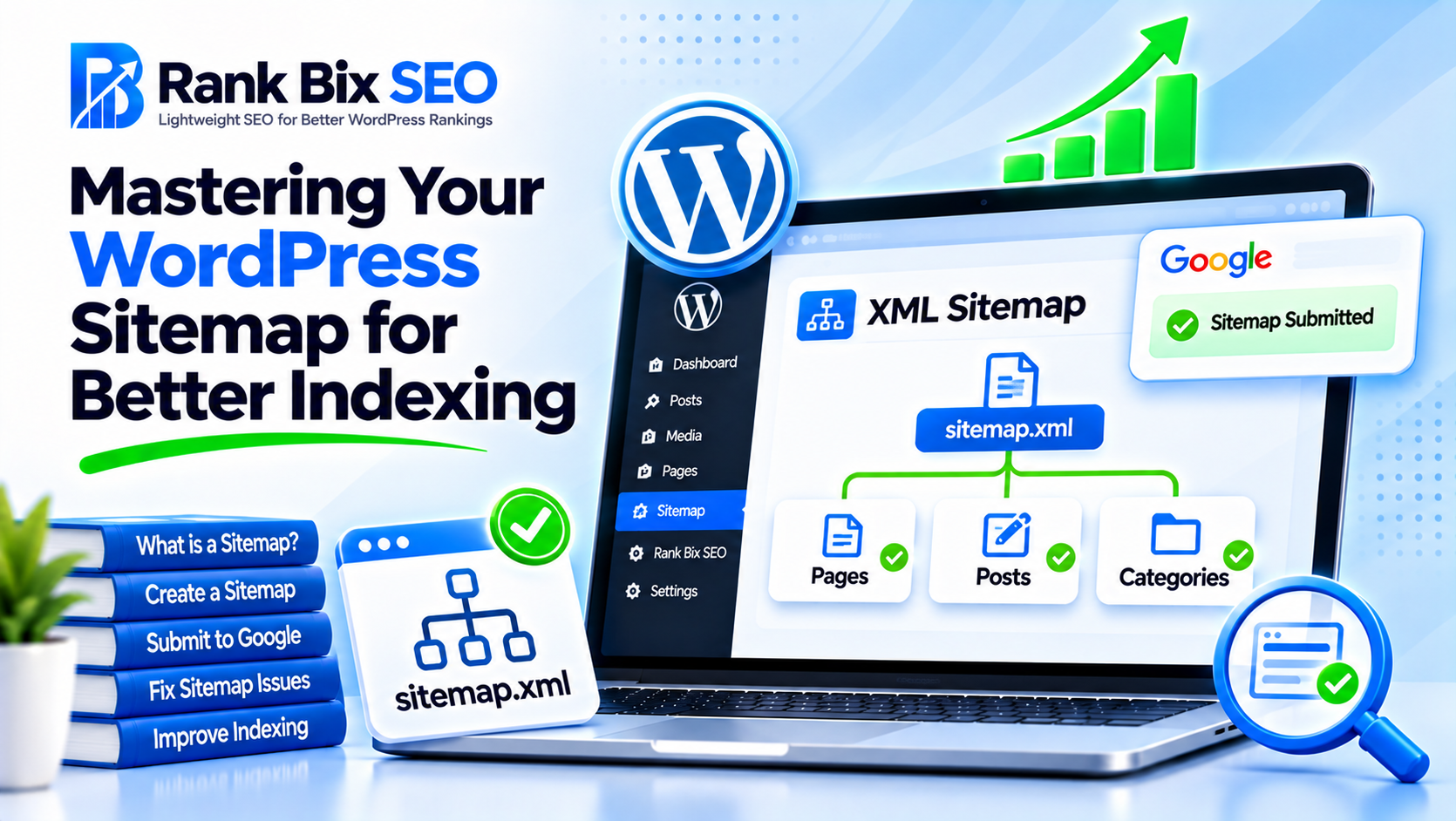
An XML sitemap is essentially a blueprint of your website that lists all of its important URLs, helping search engine bots like Googlebot and Bingbot navigate your structure with ease. Think of it as a structured index that points crawlers directly to your posts, pages, categories, and custom post types.
How it works is straightforward:
- You or your SEO tool generate the XML file, usually located at yourdomain.com/sitemap.xml.
- Search engines read this file to understand your site architecture and discover new or updated content much faster than they would through standard link crawling alone.
- The sitemap can also include metadata, such as the last modified date, which tells search engines when it is worth re-indexing a specific page.
How to Find and Verify Your WordPress Sitemap
Before you can optimize your sitemap, you need to confirm that it is active and accessible. Since WordPress version 5.5, a basic XML sitemap is generated automatically by core, typically found by adding /wp-sitemap.xml to your domain name.
To verify and monitor your sitemap’s performance, follow these steps:
- Type your sitemap URL directly into a browser address bar to ensure it loads without a 404 error.
- Log in to Google Search Console and navigate to the Sitemaps section under the Indexing menu.
- Submit your full sitemap URL to Google and check the status report to ensure it says “Success” with zero discovered errors.
- Review the coverage report periodically to confirm that all submitted URLs are being successfully indexed.
Essential Elements to Include and Exclude
Not every URL on your WordPress site deserves a spot in your sitemap. Including low-quality or duplicate pages can dilute your crawl budget and confuse search engines about which content is truly important.
Here is what you should include:
- High-quality blog posts and cornerstone content pages.
- Main service or product pages that drive conversions.
- Essential category pages that help organize your site’s hierarchy.
Here is what you should actively exclude:
- Author archive pages, especially on single-author blogs where they duplicate main blog feeds.
- Tag pages that contain thin content or only a single post.
- Utility pages like privacy policies, login screens, cart pages
What Is a WordPress Sitemap and How It Works
At its core, a WordPress sitemap is a structured XML file that lists all the important pages, posts, and taxonomies of your website. Think of it as a blueprint of your digital property designed specifically for search engines. Without it, search engines have to rely entirely on discovering your content through internal and external links, which can lead to missed pages or delayed indexing.
To understand how this file functions, you need to look at the role of search engine crawlers like Googlebot. These automated bots constantly scour the web to discover new and updated content. When Googlebot arrives at your site, it looks for your sitemap to understand the site architecture and find URLs quickly. Instead of blindly wandering through every link, the bot reads the sitemap data to prioritize which URLs to crawl and index next.
It is important not to confuse an XML sitemap with an HTML sitemap:
- XML Sitemaps: Built strictly for search engine bots, containing machine-readable code, last-modified dates, and priority hints.
- HTML Sitemaps: Designed for human visitors, presented as a styled page with clickable links to help users navigate your site structure.
Deploying the right sitemap ensures search engines efficiently index your WordPress content without wasting crawl budget.
How to Find and Verify Your WordPress Sitemap
Before you can optimize your search engine performance, you need to locate your WordPress Sitemap and confirm search engines can read it. Since WordPress version 5.5, the platform generates a basic XML sitemap automatically. However, if you use an SEO plugin, your URL structure might look slightly different. Typically, you can find your file by appending /wp-sitemap.xml or /sitemap_index.xml to your primary domain name.
Once you locate your file, take these steps to verify and submit it:
- Open your browser in an incognito window and type in your sitemap URL to ensure it loads cleanly without a 404 error.
- Log into Google Search Console, navigate to the Sitemaps section in the left sidebar, and paste your exact URL.
- Click submit and monitor the status column to ensure Google successfully fetches and reads your URLs.
If Google reports an error, do not panic. Common issues include a “Couldn’t fetch” status, which usually stems from temporary server timeouts or overly aggressive caching plugins. Clear your site cache, ensure your robots.txt file is not blocking the sitemap, and resubmit. Regularly checking this dashboard ensures search engines continue discovering your freshest content without disruption.
Essential Elements to Include and Exclude
Configuring your WordPress Sitemap correctly ensures search engines spend their time crawling your most important content. Not every page on your site deserves a spot in your sitemap. To maximize your crawl budget, you need a clear strategy for what to include and what to leave out.
What to Include in Your Sitemap
Your sitemap should act as a VIP pass for high-value content that directly drives traffic and conversions. Focus on:
- Published blog posts that target specific keywords and deliver value to your readers.
- Core site pages like your homepage, about page, contact page, and primary service landing pages.
- Custom post types that feature unique content, such as portfolio items, real estate listings, or product pages.
What to Exclude to Save Crawl Budget
Including low-value, repetitive, or private URLs wastes your crawl budget and dilutes your site authority. Make sure to exclude:
- Private, draft, or password-protected pages meant only for specific users.
- Tag archives, author pages, and date-based archives that often create thin content or duplicate pages.
- Utility pages like shopping cart screens, checkout funnels, and internal search result pages.
Handling Images and Attachments
Images can significantly boost your visibility in visual search engines, but attachment pages can clutter your index. If you run a photography or e-commerce site, include image sitemap data to help bots discover your visual assets. However, avoid generating dedicated attachment pages for every single media file, as WordPress creates these automatically and they rarely offer standalone SEO value.
Common Sitemap Mistakes That Hurt Indexing
Even with the best optimization strategy, a poorly configured WordPress sitemap can actively harm your search engine visibility. Search engine crawlers have limited time and resources to spend on your site, and hitting roadblocks in your sitemap wastes that valuable crawl budget. Reviewing your setup for common configuration errors ensures search engines index your content efficiently.
1. Including Broken or Redirected Links
Your sitemap should only list live, canonical URLs that return a 200 OK status code. If your WordPress sitemap contains pages that redirect to other URLs or result in 404 errors, you force search engine bots to waste crawl budget navigating dead ends. Regularly audit your site to ensure deleted pages or outdated URLs are automatically removed from your sitemap index.
2. Triggering Infinite Loops and Duplicate Content
Bad plugin configurations or complex pagination rules can accidentally generate infinite loops or expose massive amounts of duplicate content. If your sitemap lists filtered archive pages, session-ID URLs, or infinite scroll parameters, search engines may index hundreds of nearly identical pages. This dilutes your site authority and confuses crawlers regarding which URL is the original source.
3. Exceeding File Size Limits
Google enforces strict limits on sitemaps, capping them at 50,000 URLs and an uncompressed file size of 50 megabytes. While most standard blogs will never hit this ceiling, large e-commerce sites or news publishers frequently do. If your sitemap exceeds these limits, search engines may fail to read the entire file. Using a lightweight, efficient SEO tool helps automatically split large files into a sitemap index to keep everything within compliant parameters.
Streamlining Sitemaps with Lightweight SEO Tools
Many site owners rely on heavy SEO plugins that pack hundreds of features they never use. Unfortunately, these bloated tools often run resource-intensive background processes that slow down your database and delay how quickly search engines can crawl your WordPress Sitemap. When a plugin takes too long to generate or serve your XML files, server response times increase, which can ultimately harm your core web vitals and overall search rankings.
Switching to a streamlined, lightweight approach solves this problem entirely. A modern, performance-focused tool automates your WordPress Sitemap updates instantly whenever you publish or modify content, all without creating performance drag or eating up server memory.
To maintain a healthy technical SEO foundation, keep these best practices in mind:
- Audit your active plugins regularly and remove any that run heavy background database queries for basic tasks.
- Ensure your caching setup does not inadvertently serve stale, outdated XML files to search engine bots.
- Test your site speed after making any changes to your indexing configuration to confirm performance remains optimal.
- Monitor Google Search Console monthly to catch and resolve any sudden spikes in crawl errors or excluded URLs.
Frequently Asked Questions
Does WordPress generate an XML sitemap automatically?
Yes, starting with WordPress 5.5, the core platform generates a basic XML sitemap automatically at yourdomain.com/wp-sitemap.xml. However, this default version offers limited customization options, which is why many site owners use dedicated SEO plugins to manage and optimize their sitemap structure effectively.
How often should my sitemap update?
Your sitemap should update dynamically every time you publish, delete, or significantly update a post or page. Good SEO plugins and tools handle this automatically in the background, ensuring search engine bots always receive the most accurate and up-to-date map of your website.
Why is Google ignoring pages listed in my sitemap?
Inclusion in a sitemap does not guarantee indexing. Google evaluates page quality, duplicate content, internal linking, and meta robots tags. If a page has low value, a noindex tag, or poor user experience signals, Google may choose to skip it despite its presence in the sitemap.
Take Control of Your Site Indexing Today
Mastering your WordPress Sitemap is essential for ensuring search engines discover, crawl, and index your content efficiently. Throughout this guide, we explored how sitemaps work behind the scenes, how to locate and verify your file, and which crucial pages to include or exclude. We also highlighted common indexing mistakes to avoid and how leveraging lightweight SEO tools can streamline the entire process without slowing down your site.
Your clear next step is to check your current sitemap setup today. Review your excluded URLs, submit your clean sitemap to Google Search Console, and equip your WordPress site with a fast, reliable SEO plugin to keep your indexing running on autopilot.